





The NCF site has been created using several elements that are “Global”. This means that we can adjust styling to that element and have those changes happen across all of those elements throughout the website. This is a very useful tool if used correctly.
1. Identifying Global Elements
Global Elements can be Sections, Rows, or Modules. If an element is Global, it will be neon green in both the wireframe view and the visual builder.
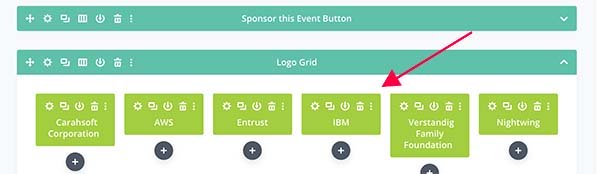
Wireframe view
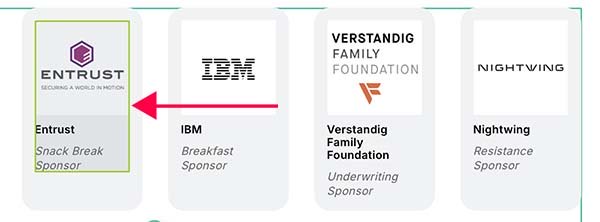
Hovering over a global element in the visual builder will give you the neon green border.
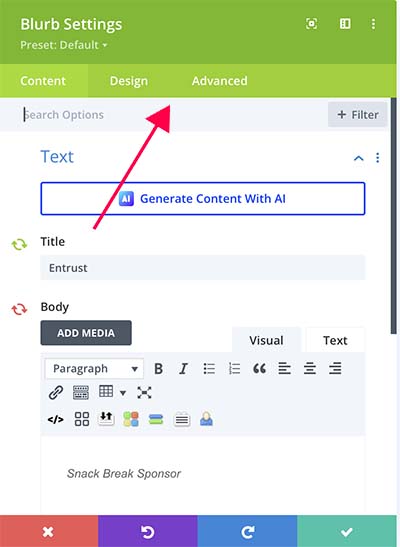
The edit window for a Global Element will have the neon green header section.
2. Modifying Global Elements
Global Elements can change elements in multiple places throughout the site so it is very important that you are only modifying parts of the settings that are not marked as global.
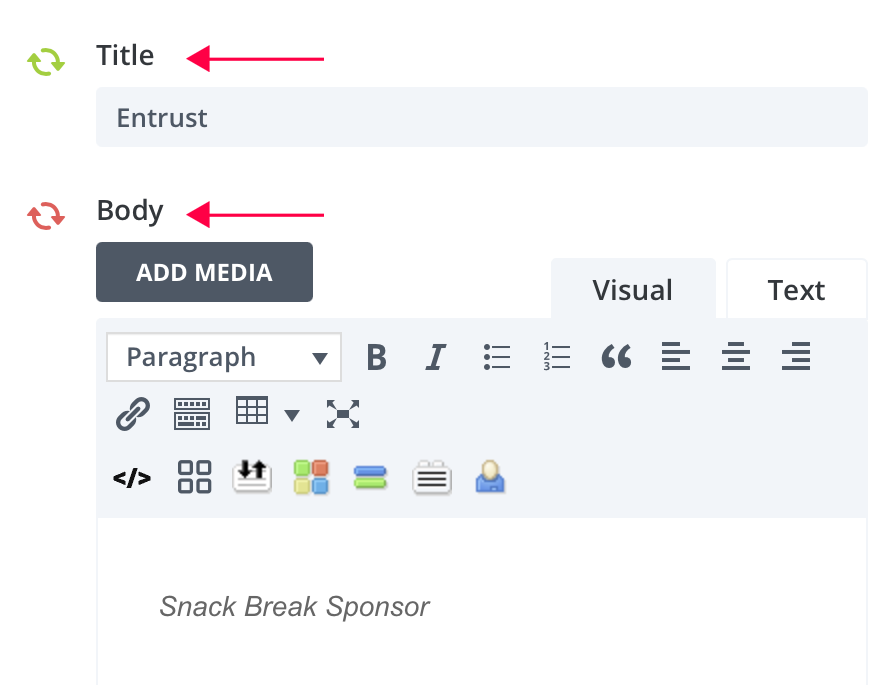

Content will change EVERYWHERE
It is really important to understand that making a change when the arrows are green will affect every instance you have used this global element.

Content will only change in this element
When the arrows are red this setting is NOT global and can be changed without affecting the rest of the website. An example of this is changing the sponsorship level for the sponsor icons. The icons and company name will stay the same but the sponsorship level can be different from event to event.
3. Adding Existing Global Elements
Several global elements already exist in the Divi Library. You can access these elements through the page builder. This example uses a global module but there can also be global rows and sections. When using global sections and rows, you WILL NOT be able to change module within the global section or row without affecting the rest of the site.
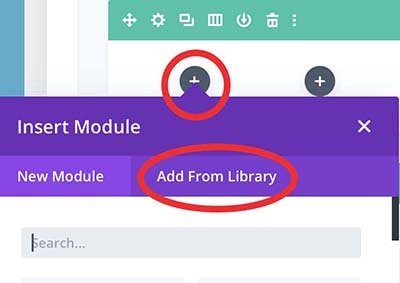
Click the plus sign to add a new module and choose Add from Library.
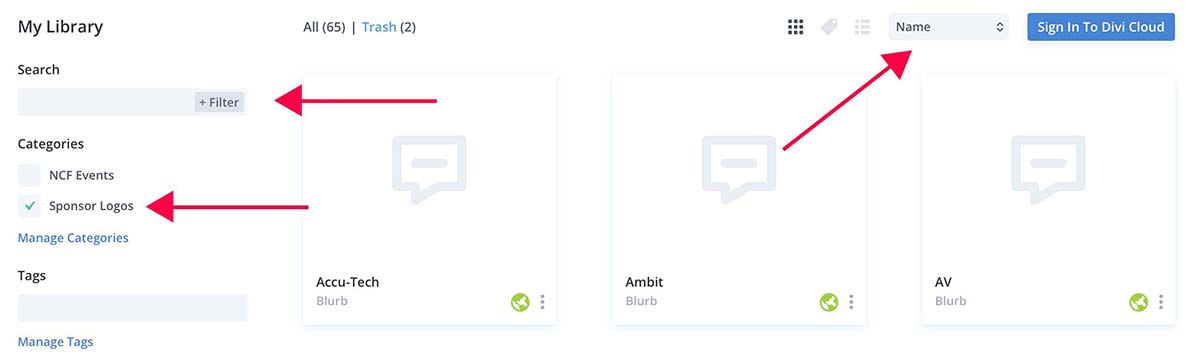
From the Library selection page you can use the search bar if you know what the module is named (ex. Company for sponsorship logos), or refine your search using the category filter options. By default the modules will be ordered by the date they were created but you can select by “Name” in the sort options.
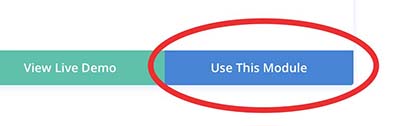
Choose your module and click on select the module.
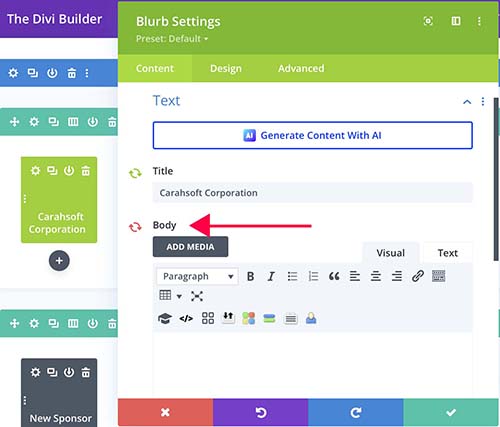
Open the settings if you need to make changes. If the content you need to adjust has green arrows but you only want it to change on this module, then make sure to click the arrow to make it red before you change the content.
4. Creating Global Elements and Saving to Library
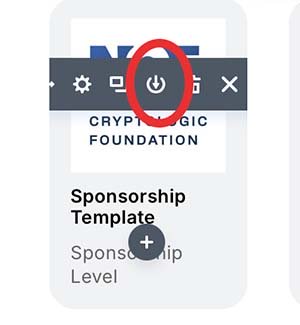
Once you have created your section, row or module, click on the down arrow to Save to Library.
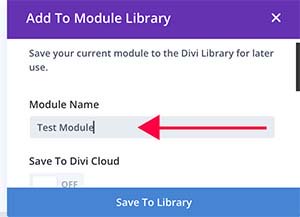
Give the module, row or section a name. Be intentional when naming as this will be how you find these elements when you need them again.
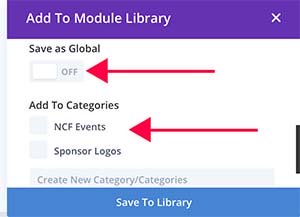
Scroll down and turn on the “Save as Global” toggle. Add the element to a Category or create a new one if necessary. Again, these will be how you search for the element in the future. Click Save to Library.
NOTE: By default ALL the arrows will be green so open the settings and make sure you click on the arrows next to any of the content you don’t want to be global.