






1. Page Title and Custom Fields
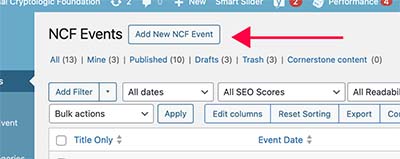
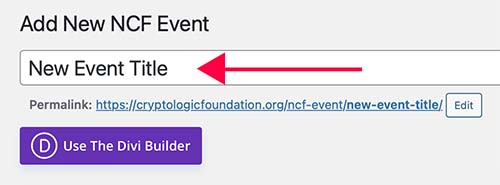
Click on Add New NCF Event and give it a Title.
Until now you have been naming the page something like this: You have been using titles like “Convening to Act: Accelerating U.S. Post‑Quantum Cryptography Adoption: From Standards to Deployment but this makes the titles really long they wrap over multiple lines.
For now you only need to choose a page title that helps you easily identify events in the admin dashboard. This page title does not show up anywhere on the live event page.
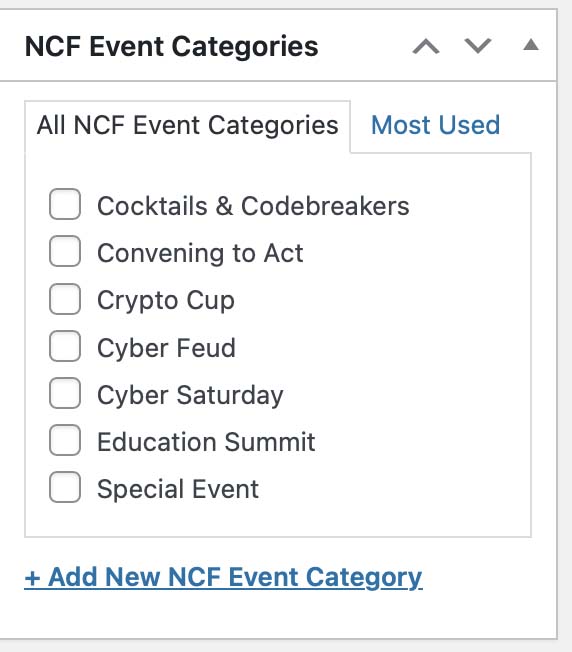
Choose the Category that the event falls under.
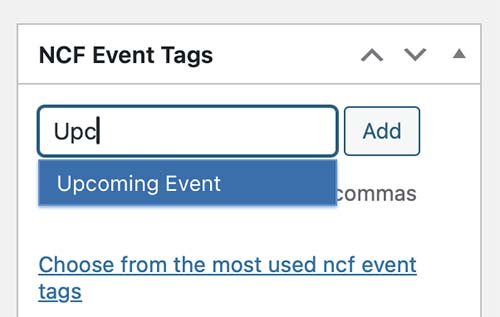
Use the Tags fields to select whether it is an upcoming or past event. Once you start typing the options will appear in the dropdown.
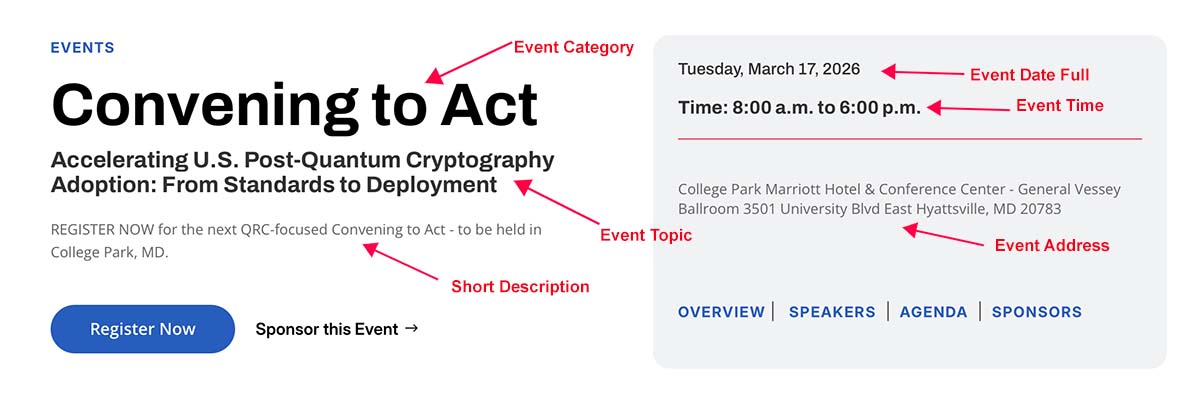
Complete the custom fields. This is where these custom fields will appear.
If it is a Crypto Cup or Cyber Saturday which don’t have a “event topics” then leave that field blank and just the category will show up in the header section. Or you can use that topic fields to say something like “Coming to Georgia”.
2. Adding Sections from Library
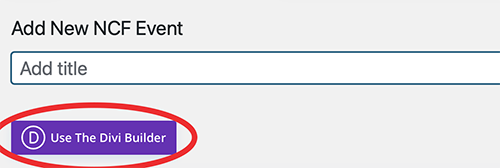
Click on “Use Divi Builder”.
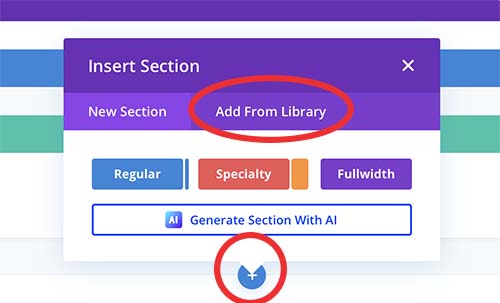
Click on the blue + and select Add from the Library.
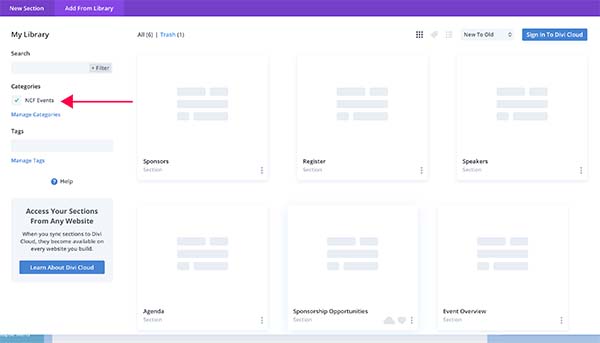
Filter the results by clicking “NCF Events”. Here you will get a list of the sections required for any of the NCF Events.
3. Overview Section
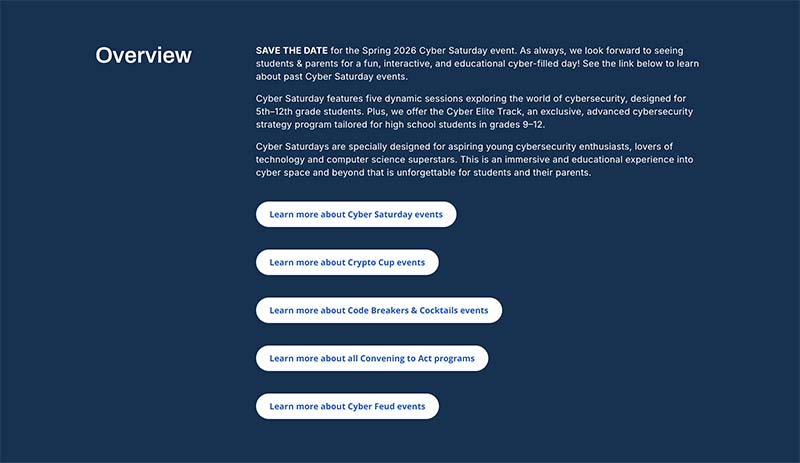
Replace the copy content and delete any buttons that aren’t needed. Keep in mind that these buttons are global elements so any changes made here will change across the entire site.
4. Register Section
Coming soon.
5. Sponsorship Opportunities/Agenda
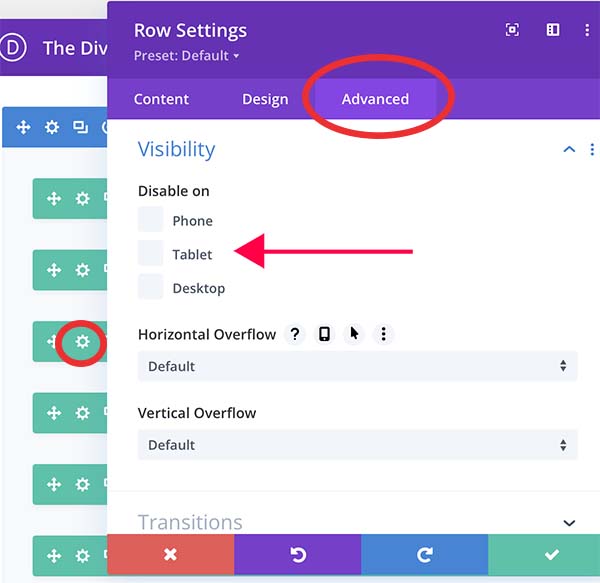
By default all the rows will be visible when you import these sections. Turn off the visibility for elements you don’t need. The consistent spacing for this section revolves around rows, so rather than turning off visibility for individual modules, turn the visibility for the rows on and off.
There are anchor links in the header that jump to these sections, so even if you don’t have content finalized for this section, make sure that the section is visible and “Coming Soon” is turned on otherwise that anchor links won’t go anywhere.

The Sponsorship is closed row has a button for “Sponsor a Future Event”. By default this goes to the Sponsorship Opportunities page, but by clicking on the Link option in the settings you can choose a specific page ex. Cyber Saturday Sponsorships.
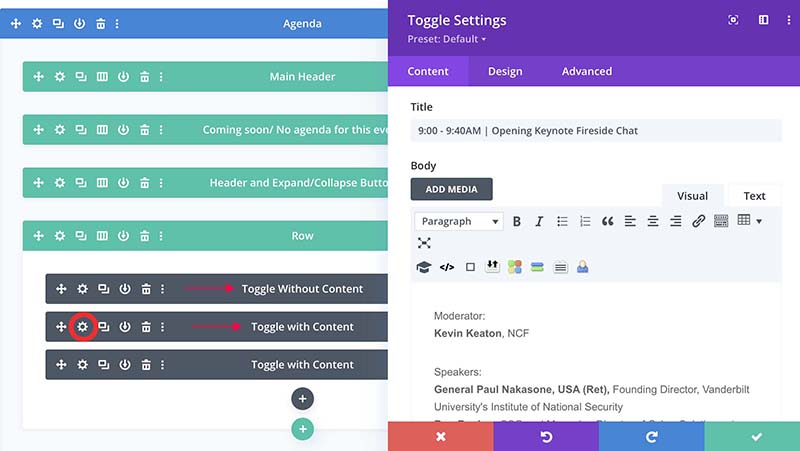
Use the gear icon to open the module and modify the content. The Title is visible text, the Body is the drop down text.
The difference with the agenda toggles is that there are two types – one is set up to have drop down content and the other does not, so make sure you’re duplicating and using the appropriate module.
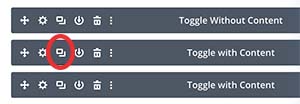
Use the module duplication option to add more toggles.
6. Speakers
After pulling in the Speakers Section, turn on and/or off the visibility for the various components. If you don’t want the Speaker Grid to show right away, then turn off that row and turn on the “Coming Soon”.
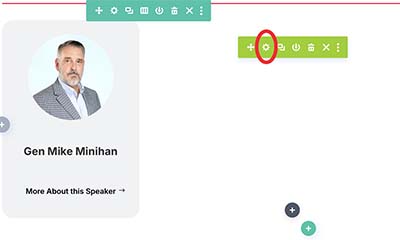
Navigate to the Speaker Grid section and click on the gear icon to pull up the settings.
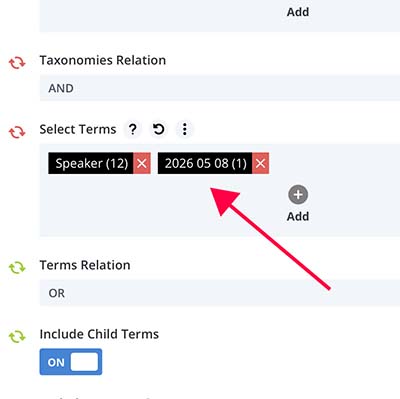
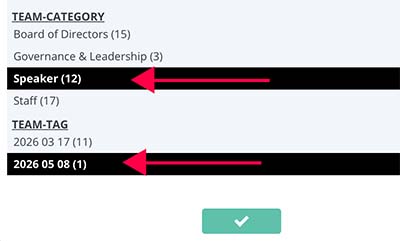
Add the appropriate Date Tag to show results for that event. If you are separating Keynote, Panel and Speakers, then you need to select all three tags.
7. Sponsors
After pulling in the Sponsors Section, turn on and/or off the visibility for the various components.
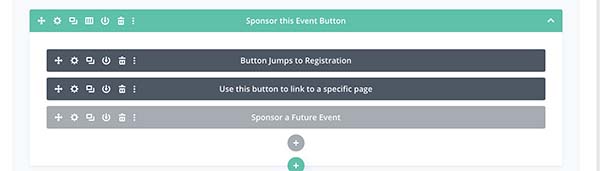
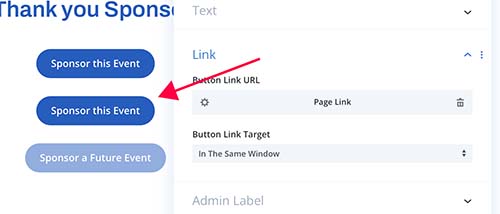
Choose which “Sponsor this Event” button you want to use.
The top button will jump to the Register section on the current event page.
The second button allows you to choose a link to a separate page (ex. Cyber Saturday Sponsorships).
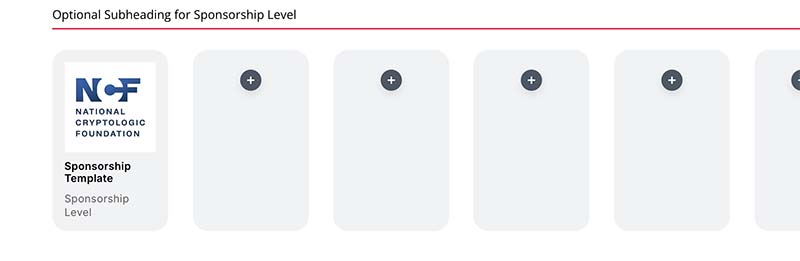
Turn off visibility or update the Optional Subheading for the logo section.
Open the Logos Row and refer to Using and Creating Sponsorship Logo Blurbs for NCF Events.